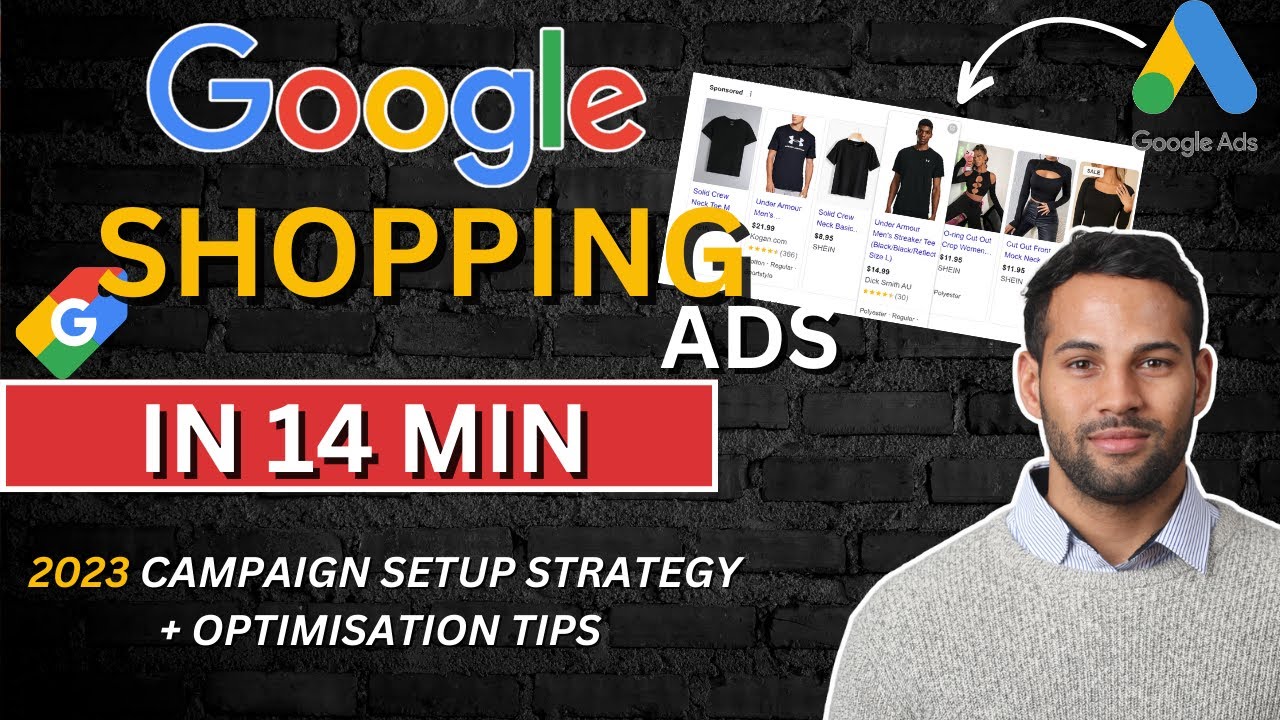
What Are Google Shopping Ads?
Google Shopping Ads are the product listings that appear at the top of Google search results when someone searches for a product. Unlike text ads, Shopping Ads show an image, price, and store name - which means the person clicking already knows what they're buying and roughly what it costs.
This makes them one of the highest-intent ad formats available. Someone searching "buy green running shoes size 10" and clicking a Shopping Ad is much closer to purchasing than someone clicking a generic brand awareness ad.
What You Need Before You Start
- A Google Ads account linked to your business
- A Google Merchant Center account with your product feed connected
- Conversion tracking set up so Google knows what a sale looks like
Shopify users: Install the free Google and YouTube app from the Shopify App Store. It creates and syncs your product feed automatically.
Step 1 - Set Up Your Product Feed
Create Your Merchant Center Account
Go to merchantcenter.google.com and verify your website. You'll need to add a small code snippet or verify via Google Tag Manager.
Connect Your Product Feed
If you're on Shopify, the Google channel app handles this automatically. For WooCommerce, use a plugin like WooCommerce Google Feed Manager. For custom stores, create a Google-spec spreadsheet with ID, title, description, price, link, image link, availability and condition.
Fix Any Feed Errors
Merchant Center will flag issues - missing GTINs, small images, price mismatches. Fix these before launching. Disapproved products won't show in ads.
Step 2 - Create Your Shopping Campaign
- In Google Ads, click New Campaign and select Sales as your objective
- Choose Shopping as the campaign type
- Select your Merchant Center account
- Set your target country and daily budget
- All products will be grouped together by default - segment them later by product type or margin
Performance Max vs Standard Shopping: Google will push you toward PMax. For most e-commerce stores starting out, Standard Shopping gives you more control and clearer data. Start there.
Step 3 - Choose the Right Bidding Strategy
- Target ROAS - best once you have conversion data. Set a realistic target based on history.
- Maximise Conversion Value - good starting point without ROAS data.
- Manual CPC - more control, more work. Good for tight budgets.
Step 4 - Optimise Your Campaign
- Search term report - add irrelevant terms as negatives weekly
- Product performance - identify profitable products and give them more budget
- Product titles - your feed title is your keyword. Include terms people actually search for
Common Mistakes to Avoid
- Running all products in one ad group with no segmentation
- Not setting up conversion tracking before launch
- Ignoring the search terms report
- Using the same bid for a $20 and a $200 product
- Switching bidding strategies too frequently - give Google at least 2 to 4 weeks to learn
What Results Should You Expect?
For a well-managed Shopping campaign, a 4x to 6x ROAS is achievable for most e-commerce stores. The first 2 to 4 weeks is a learning phase - expect higher CPCs and lower ROAS during this period. Don't panic and don't make big changes.
Want Us to Run This for You?
We manage Google Ads campaigns for businesses across Australia. Google Partner agency. Results-focused, no lock-in contracts.